Daily Report Software for Superintendents: What to Look For
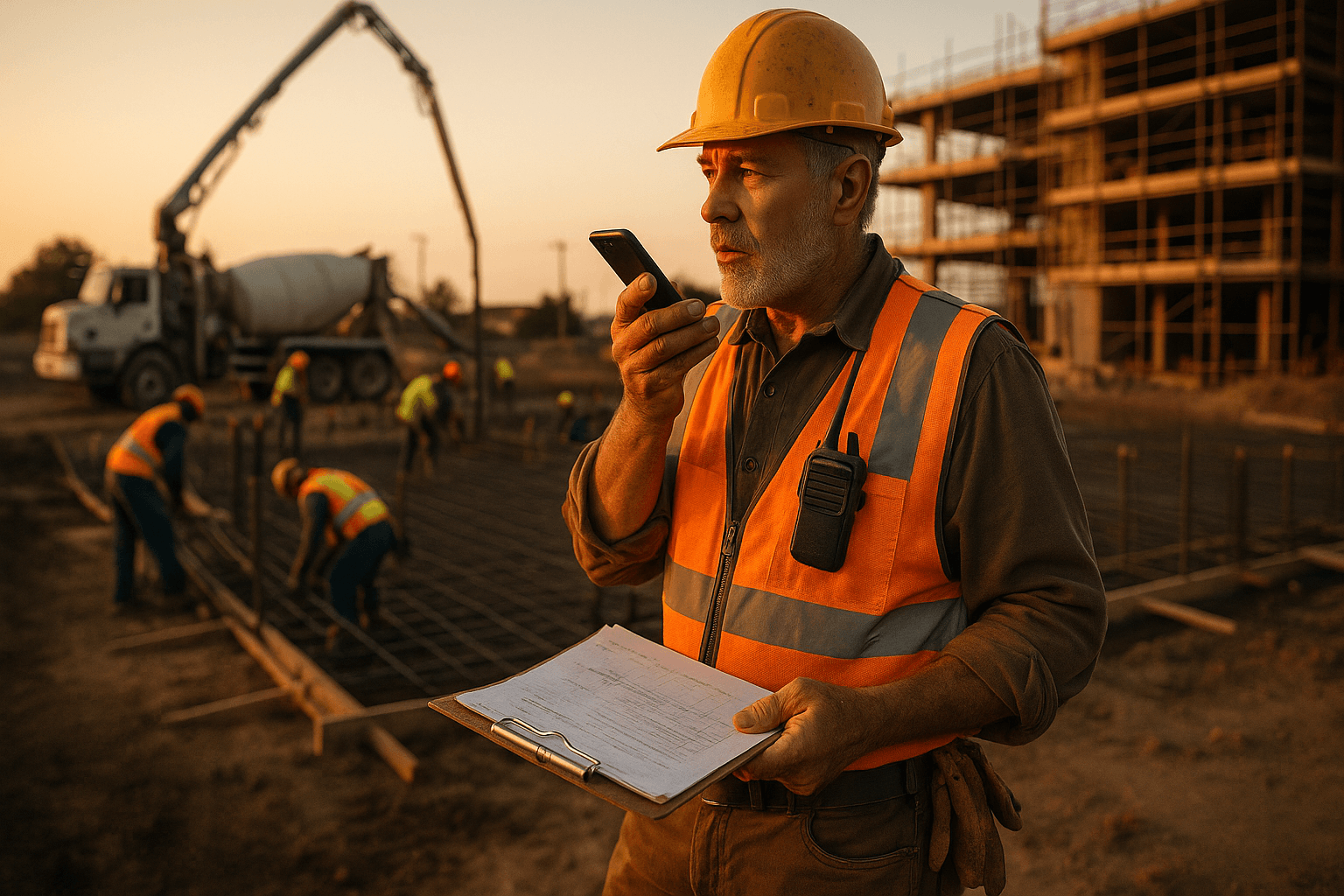
If you’ve ever finished a 10-hour day, climbed into your truck, and realized you still owe a daily… you already know why superintendent daily report software matters. The problem isn’t that supers don’t want to document. The problem is most tools are built for clean desks, strong Wi‑Fi, and someone with time to “fill in the blanks.” On a real site—mud, gloves, dead zones, subs asking questions—you need something that works fast, offline, and without babysitting.
Table of Contents
- Why Most Software Is Built for PMs, Not Supers
- The 7 Features That Actually Matter
- Features You DON'T Need (That Companies Upsell)
- Red Flags When Evaluating Software
- Questions to Ask in a Demo
- Budget Reality Check
- Making the Switch: Practical Tips
- FAQ
Why Most Software Is Built for PMs, Not Supers
A lot of daily report software construction companies say they’re “field-friendly,” but the product tells a different story. The workflow usually goes like this: the office wants standardized logs, so the software asks for a bunch of structured fields. That’s great if you’re in a trailer with coffee and a keyboard.
Out in the field, your day is interruptions. You’re answering the pump truck, walking a deck, dealing with an RFI, tracking manpower, getting ahead of tomorrow, and putting out two fires before lunch. Most “superintendent reporting software” assumes you can stop and type a novel. That’s not how the job works.
Two real scenarios that show the gap:
- Concrete day, multiple pours: You’re tracking start/stop times, cylinders, truck tickets, finish issues, and weather swings. If the app makes you open five different screens and type every line item, you’ll do it later… which means it won’t be accurate.
- Rural site with spotty signal: The demo worked great in a downtown office. Then you get to a pad site with one bar of LTE and photos won’t upload. Now your “easy” daily becomes a half-finished draft stuck spinning.
A good construction super daily log tool respects reality: short inputs, repeatable patterns, and no punishment for being offline.
The 7 Features That Actually Matter
Most feature lists are noise. These are the seven things that actually decide whether a tool becomes part of your day—or dies after week two.
Mobile-first (not mobile-also)
“Mobile” can mean two very different things:
- A real mobile-first workflow designed for thumbs
- A desktop form squeezed onto a phone screen
You can tell in 60 seconds. If you’re pinching/zooming, hunting tiny dropdowns, or bouncing between screens to add basic info, it’s not mobile-first.
Examples from the field:
- Walking a punch list: You should be able to snap a photo, dictate a note, tag the location, and move on—without “saving” six times.
- Morning stretch and flex: If you’re entering planned work while standing by the gang box, the app should let you tap quick selections (trade, area, activity) instead of typing paragraphs.
Practical takeaway:
- Test the app one-handed. If you can’t run it while holding drawings or a radio, adoption will be rough.
Offline capability
Offline mode is non-negotiable. Not “limited offline.” Not “it caches sometimes.” Real offline.
Two common offline realities:
- Underground parking levels / tilt-up buildings: Your phone drops to nothing inside the structure. If the app won’t load yesterday’s report or won’t save today’s, it’s dead on arrival.
- Rural utilities / renewable sites: You might have decent signal at the trailer and nothing out on the line. Supers don’t sit at the trailer all day.
What “real offline” should include:
- Create/edit a report with no connection
- Add photos offline
- Save everything locally
- Sync automatically when you’re back online
Practical takeaway:
- Don’t ask the vendor if they have offline. Ask them to prove it by putting your phone in airplane mode during the demo.
Speed to complete a report
If a daily takes more than 10 minutes, adoption will fail. Period. Not because supers are lazy—because the workday doesn’t leave room.
Two speed killers I see over and over:
- Too many required fields: The app forces you to fill boxes that don’t matter for that day. Then you end up making stuff up just to submit.
- No re-use of yesterday: If your report can’t pull yesterday’s crew, work areas, and activities with one tap, you’re retyping your life.
What good speed looks like:
- Start from a template (your template, not theirs)
- Pull forward yesterday’s items
- Quick add for exceptions (delays, safety issues, visitors)
Practical takeaway:
- Time yourself on a real day: add manpower, equipment, work performed, delays, photos, and notes. If you’re still working after 10 minutes, the tool is the problem.
Voice input options
Voice isn’t a gimmick anymore. It’s becoming table stakes—especially when you’ve got dirty hands, gloves, and you’re smoked at the end of the day.
But “voice” can mean two things:
- Dictation into a blank text box (you still have to structure it)
- Voice-first AI that structures the report for you
Real-world voice scenarios:
- End-of-day wrap-up in the truck: You can talk through the day in 2–3 minutes: “Crew of 12, set embeds in Area B, rain delay 1:30–3:00, inspector on site, two T&M tickets.” The tool should turn that into clean sections automatically.
- Quick incident note: “Forklift tore up the curb at the south entrance, notified GC, took photos, temp barricade installed.” That should become a timestamped note with attachments.
Practical takeaway:
- Test voice in the noisiest place you work: near generators, inside a building, or next to traffic. If it only works in silence, it doesn’t work.
Photo handling
Photos are the simplest proof you’ve got—until the app makes them painful.
What matters:
- Fast capture (camera opens quickly)
- Easy sorting (by area, trade, or issue)
- Captions/annotations without fuss
- Reasonable compression (so uploads don’t choke)
Two photo-heavy days:
- Rebar / pre-pour: You might take 30 photos. If the app uploads one at a time and blocks you from continuing, you’re going to quit.
- Waterproofing / envelope: You need clear “before/after” sequences. If the tool scrambles photo order or strips timestamps, you lose your story.
Practical takeaway:
- Ask if photos can be added offline and synced later. That’s where most tools fall apart.
Weather automation
Weather is in every daily for a reason: claims, delays, schedule impacts, safety planning.
Good weather automation:
- Pulls conditions automatically by job site location
- Lets you add notes like “work stopped” or “limited production”
- Doesn’t force you to manually type temps and wind every day
Two common use cases:
- Rain delay dispute: “We worked through light rain” is different than “we shut down for lightning.” The daily needs both: automated data plus your note.
- Concrete protection: Overnight low matters. If your daily log tracks it automatically, you’re covered when someone asks later.
Practical takeaway:
- Check if weather is pulled by GPS/job address and if it includes the basics you actually cite (temp range, precipitation, wind).
Export/sharing options
At the end of the day, you’re not writing a daily for fun. You’re writing it so someone else can read it—owners, PMs, clients, inspectors, attorneys if things go sideways.
You need clean output:
- PDF export that looks professional
- Email/share links that don’t require the recipient to log in
- Ability to send to your PM, the owner’s rep, or archive to a folder
Two real sharing situations:
- Owner wants a daily by 7 a.m.: If your app can’t auto-send or export quickly, you’re stuck formatting at night.
- Claim prep months later: You need to pull reports fast by date range and job, with photos included.
Practical takeaway:
- Export a sample PDF during the trial and ask yourself: “Would I be comfortable sending this to an owner as-is?”
Features You DON'T Need (That Companies Upsell)
Some features are fine. They’re just not what decides whether supers actually use the tool.
Common upsells that don’t fix the daily-report problem:
- Massive dashboards and analytics you’ll never open on a job site
- Custom workflow approvals that slow you down (you’re not submitting a mortgage application)
- Deep accounting integrations that matter to the office, not to today’s daily
- “Everything app” bundles that turn a simple daily into a training program
Two examples of how this plays out:
- You just want to log manpower and delays, but the app forces you to tag cost codes for every note. Now the daily takes 25 minutes and you’re the bad guy when it doesn’t get done.
- A vendor sells “advanced reporting,” but you can’t even get a clean PDF with photos in the right order. That’s backwards.
Practical takeaway:
- Pay for what you’ll use weekly. Not what looks good in a slide deck.
Red Flags When Evaluating Software
I’m not saying every big platform is bad. I’m saying a lot of them weren’t built with the field superintendent in mind.
Red flags I watch for:
- The demo requires perfect conditions (strong Wi‑Fi, quiet room, lots of time)
- Offline is vague (“it should work” is not an answer)
- The daily report is a giant form instead of a fast log
- Too many taps to do basic things (add crew, add photo, add delay)
- Support feels like a ticket system, not a real person who understands jobsites
- Per-user pricing that punishes adoption when you want foremen involved
Two reality checks vendors rarely show:
- Dirty hands + gloves: If the app needs tiny taps, you’ll end up taking notes on paper and “entering later.” Later never comes.
- Exhaustion at 6:30 p.m.: If the tool depends on you remembering every detail and typing it perfectly, it’s not designed for the job.
Practical takeaway:
- If the vendor won’t let you trial it on your actual job site conditions (bad signal, noisy environment), walk.
Questions to Ask in a Demo
Don’t let the vendor drive the whole demo. You’re not buying a promise—you’re buying what happens at the end of a brutal day.
Ask these, and make them show you live:
- “Put the phone in airplane mode. Can we still create a full daily with photos?”
- “How fast can I finish a real report—manpower, work performed, delays, visitors, photos—without skipping fields?”
- “Can I reuse yesterday’s crew and activities with one tap?”
- “Show me voice input. Does it structure the report automatically or just dictate text?”
- “How do photos upload and organize? Can I caption them fast?”
- “What happens if I take 40 photos—does the app slow down or crash?”
- “Can I export a PDF that includes photos and weather, and send it to someone without a login?”
- “How do you handle Spanish in the field?” (If you run bilingual crews, this matters more than most vendors admit.)
- “What’s your pricing model—per user, per project, or per company?”
- “If I add foremen later, does the cost jump 3x?”
- “Who supports us—someone who understands construction, or a generic help desk?”
Two demo scenarios worth forcing:
- Noise test: Stand near a running truck or fan and try the voice feature.
- End-of-day speed test: Have them time you building a daily from scratch. If they won’t time it, that tells you something.
Practical takeaway:
- Bring one foreman into the demo. If he rolls his eyes and says “this will never happen,” listen.
Budget Reality Check
Most best software for superintendents lives in the $30–$150 per user/month range, depending on features and how enterprise the company is.
Here’s the honest budget math:
- If it’s $30–$60/user, it’s usually focused: daily logs, photos, basic workflows.
- If it’s $60–$100+/user, you’re often paying for broader platform features (which may help the office more than the field).
- If it’s $100–$150+/user, you’re getting into heavy suites and enterprise pricing pressure.
The cost trap is per-user pricing when you want foremen involved. One superintendent license is manageable. Ten foremen licenses across multiple jobs adds up fast—and that’s usually when adoption stalls.
Two real budget outcomes I’ve seen:
- A company buys a tool at $100+/user for “standardization,” then only gives logins to PMs. Now supers are still texting notes and the daily is written by someone who wasn’t there.
- A company picks a simpler tool that supers actually use daily. The ROI shows up in fewer disputes, cleaner documentation, and less time spent at night doing paperwork.
Where ProStroyka fits:
- ProStroyka is $49/month early bird (regular $99) and is built around voice-to-PDF daily reports—so the value is time saved. If it replaces a 45-minute typing session with a 3-minute voice report, you feel it immediately.
Practical takeaway:
- Budget for adoption, not just purchase. The “cheapest” tool is the one your team actually uses.
Making the Switch: Practical Tips
Switching tools isn’t just a software decision. It’s a crew habit decision. Some guys will resist change, and that’s not because they’re “old school.” It’s because they’ve seen a dozen rollouts that made their day harder.
Here’s what works in the real world.
Start with one job, one superintendent Pilot it on a job with real complexity—multiple subs, inspections, deliveries—not your easiest site.
Examples:
- Busy TI job: Lots of daily changes, lots of photos. If the tool survives here, it’ll survive anywhere.
- Civil job with dead zones: Perfect test for offline mode and photo syncing.
Practical takeaway:
- Set a simple goal: “Dailies done before leaving site, 4 days a week.” Not perfection.
Use your real daily format Supers don’t want a “new way to write.” They want the same story, faster.
Examples:
- If you always write “Work Completed / Work Planned / Delays / Visitors / Safety,” keep that structure.
- If you track manpower by trade and area, don’t accept a tool that forces you into one generic bucket.
Practical takeaway:
- Build one template and lock it. Too much customization turns into chaos.
Get buy-in the right way Don’t sell the crew on “technology.” Sell them on less after-hours paperwork and fewer arguments later.
Examples:
- Tell foremen: “If we document the delay and the delivery miss today, we don’t fight about it in three weeks.”
- Tell your PM: “If you want better dailies, I need a tool that takes under 10 minutes—otherwise it’ll be late and incomplete.”
Practical takeaway:
- Pick one “champion” foreman who’s respected. If he uses it, others follow.
Test in actual job site conditions This is the part the industry avoids. Most demos are fantasy.
Run these tests for a week:
- One day fully offline
- One day with 25–50 photos
- One day with heavy voice use (end-of-day plus quick notes)
- One day shared to an owner/PM as a PDF
Practical takeaway:
- If the tool makes you do more work at night, it’s not a field tool. Period.
FAQ
Q: What’s the biggest mistake when choosing superintendent daily report software? A: Buying based on a perfect demo instead of a dirty, noisy, low-signal job site. If it can’t handle offline work and fast photo capture, it won’t last.
Q: How fast should a daily report realistically take? A: Under 10 minutes on most days. On heavy days (incidents, major deliveries, lots of photos), you might hit 15—but if you’re regularly at 30–45 minutes, the software isn’t built for supers.
Q: Is voice input actually reliable on a construction site? A: It can be—if it’s built for the field. Test it around noise (equipment, fans, traffic) and with your normal speaking style. The best tools don’t just transcribe; they structure your report so you don’t have to edit a wall of text.
Q: What pricing model is best for field adoption? A: One that doesn’t punish you for involving foremen. Per-user pricing can work, but it often kills rollout when you try to expand beyond one or two logins.
Q: What should I send to the owner or PM—app access or a PDF? A: Most of the time, a clean PDF is the safest. It’s easy to forward, archive, and reference later, and nobody needs another login.
Built for superintendents, not project managers. Try ProStroyka free — create your first voice report in 3 minutes. ProStroyka turns your voice notes into professional PDF daily reports automatically. Start Free Trial — no credit card required.